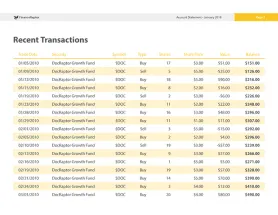
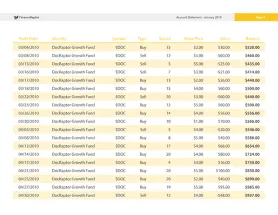
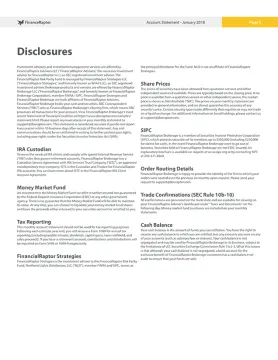
We’ve recently been working with a client who needed to implement dynamic PDF generation across multiple marketing pages. This was an interesting use for DocRaptor, and we thought it was a great opportunity for a case study. Chris Merkle, CEO of RAZUR, was kind enough to share his story with us.
RAZUR was in the market for an HTML to PDF solution for their Client, an industry-leading managed security service provider. After reviewing multiple options, including developing their own PHP-based web solution, RAZUR choose DocRaptor.
“Our development team choose DocRaptor because it was cost-effective and allowed us to rapidly roll-out a solution for our Client,” says Chris Merkle, CEO of RAZUR.
The goal was to dynamically generate marketing collateral from content that was already stored in a content management system, without having to change static PDFs every few weeks.
By using DocRaptor’s URL-based solution and a highly-customized CSS3 stylesheet RAZUR was able to create a flexible template that would scale across 25+ marketing web pages. Hidden HTML “div” tags were used as wrappers to dynamically include “About Us” content, custom call-outs and page titles while adhering to the Client’s strict brand guideline.
RAZUR’s Client is now able to provide their sales team and website visitors with elegant, always up-to-date PDF brochures with the click of a button. By using DocRaptor to generate PDF files, RAZUR was able to create a solution that saved hundreds of hours of content design; the Client no longer had to make changes to the slew of marketing collateral every time the web content changed.
We’re always happy to help developers implement DocRaptor. Our goal is to make it simple to convert HTML to PDF and Excel, and it’s great to hear from satisfied clients like RAZUR.
Do you have an interesting DocRaptor implementation story? Contact us if you’d like to share!
We just made it a lot easier to prototype with DocRaptor! We’ve implemented a new feature that will email errors to you when a PDF or XLS file fails to generate as expected. This feature makes it simpler for new users to implement high quality PDF and Excel generation, as well as helping our established users deal with unexpected problems.
Here’s an example of what these emails look like:

We include the error DocRaptor returned as well as a link to the document log for the failed document. By clicking through, you’ll see all the information we have for that document, including any problems or errors in DocRaptor’s attempt to create it.
All new users will automatically be opted in to receive error emails, but existing users will have to opt in. Or maybe you already receive a ton of email, and this feature isn’t super helpful to you. It’s easy enough to turn off. You can make your selection by clicking the “Edit Profile” link in your account dashboard. Behold:

That’s all there is to it! This feature will notify you when something breaks in production, reduce the time spent on debugging, and make it easier for our support team to assist you if you get stuck.
DocRaptor makes it easy to generate PDF files with customized sizes and orientations. Our service uses Prince XML for PDF generation, and setting customized sizes is simply a matter of using optional CSS rules.
Here’s some sample code that will generate a US Letter sized PDF in landscape format:
<html>
<head>
<style type="text/css">
@page { margin: 1em; }
@page { size: US-Letter landscape; }
body { font-size: 200%; }
</style>
</head>
<body>
Behold: a landscape oriented PDF!
</body>
</html>
You can use optional Prince CSS parameters to create PDF files with a wide variety of standardized sizes and formats, as well as setting your own custom dimensions.
Here’s a link to Prince’s documentation, with a full list of their optional page size CSS parameters:
Most DocRaptor customers have complete control over the assets they use in their assets, but one of our newer customers is aggregrating content from a variety of marketing material. All of the assets from that material may or may not be available. Bloomingdale’s is not going to keep their May, 2012 email marketing content online forever.
Enter http_timeout, the latest feature available for DocRaptor. By default, we try to fetch an external resource for up to 60 seconds. With this option, you can set the timeout to whatever you want. As an example, here’s a contrived document that takes a long time due to timeout
curl -H "Content-Type:application/json" -d'{"user_credentials":"YOUR_API_KEY_HERE", "doc":{"name":"docraptor_sample.pdf", "document_type":"pdf", "test":"true", "document_content":"<html><body><img src='http://docraptor-callbacks.herokuapp.com/slow'></body></html>"}}' http://docraptor.com/docs > docraptor_sample.pdf
If you run that command, it will sit there for quite a while waiting for a timeout. Let’s try setting the timeout to 5 seconds:
curl -H "Content-Type:application/json" -d'{"user_credentials":"YOUR_API_KEY_HERE", "doc":{"name":"docraptor_sample.pdf", "prince_options":{"http_timeout":"5", "version":"8.1"}, "document_type":"pdf", "test":"true", "document_content":"<html><body><img src='http://docraptor-callbacks.herokuapp.com/slow'></body></html>"}}' http://docraptor.com/docs > docraptor_sample.pdf
Much better.
The important part is
"prince_options":{"http_timeout":"5", "version":"8.1"}
This option only works if you’re Prince 8 (or newer). If you’re using an older version, the option is ignored. It’s not necessary to specify the Prince version if you’re already using 8.1 as your default. If you’re not sure, check your profile page. It’s easy to switch!
Good news, everyone! DocRaptor has been upgraded to Prince 8.1.
The latest version of Prince XML provides better CSS support, which means DocRaptor produces even better PDFs. Prince 8.1 is faster than our current installation of Prince 7.1, and supports CSS3 transforms and has experimental support for HTML5.
For a full list of the changes, check out the change log on Prince XML’s home page:
A bit worried about Prince 8.1 breaking your Prince 7.1 layouts? Never fear! We are running both Prince 7.1 and Prince 8.1 side by side, which means you can still use Prince 7.1 to generate documents, if you prefer.
All new DocRaptor accounts will default to Prince 8.1, while all existing accounts will default to Prince 7.1. You can change this setting for all documents you create, or set it per document. Here’s a screenshot showing how to set this parameter globally:

You can use our new Prince version API parameter to select which version of Prince you want to use for each document.
In the near future, we’ll provide improved support for Javascript DOM properties, but this feature has not been implemented with this update.
Good news, friend! DocRaptor Gem v0.2.0 Released today. Check out the new Gem with test suite and ARec-style ! methods. Here’s the repo. You can see code changes here.
create! method which will raise an exception when doc creation failslist_docs! method which will raise an exception when doc listing failsstatus! method which will raise an exception when getting an async status failsdownload! method which will raise an exception when getting an async status failsHave your own incredible idea? Send an email with feedback to the DocRaptor dinosaurs or fork it and send us a pull request.
Mark from Carriemail asked about using Google Webfonts</a> in the DocRaptor Rails Example (clone it from github).
Now that the link-fest is over, let’s talk about how to do that (it’s really easy).
In app/views/index.pdf.haml (original), I add the following to the <head> of the haml file used to make the PDFs:
%link{:href => "http://fonts.googleapis.com/css?family=Cantarell|Gravitas+One&v2", :rel => "stylesheet", :type => "text/css"}
%style{:type => "text/css"}
= "h1 { font-family: 'Gravitas One', cursive; font-weight: bold; }"
= "th { font-family: 'Cantarell', serif; font-size: 16px; }"
I also altered the table to use th and thead tags. The changes are on the google-web-fonts branch at github.
I added a couple of items to the sample app, and here’s what it looks like after the change (non-test document and font-size bumped).

Note: If you’re planning to use this in production, I highly suggest using Rails Layouts and external stylesheets to manage your common code and style settings.
Thanks for the question, Mark!
Links:
In my original Google Web Fonts post, I gave a simple example of using Google Web Fonts via their CSS downloads. This post deals with using Google Web Fonts via javascript. Yay!
I’m going to pull the js example from the Webfont Loader page. It is reproduced below. Note: I have altered the sample to remove some CSS rules to make it easier to follow.
<html>
<head>
<script type="text/javascript">
WebFontConfig = { google: { families: [ 'Tangerine', 'Cantarell' ] } };
(function() {
var wf = document.createElement('script');
wf.src = ('https:' == document.location.protocol ? 'https' : 'http') + '://ajax.googleapis.com/ajax/libs/webfont/1/webfont.js';
wf.type = 'text/javascript';
wf.async = 'true';
var s = document.getElementsByTagName('script')[0];
s.parentNode.insertBefore(wf, s);
})();
</script>
<style type="text/css">
.wf-active p { font-family: 'Tangerine', serif }
.wf-active h1 { font-family: 'Cantarell', serif; font-size: 16px; }
</style>
</head>
<body>
<h1>This is using Cantarell</h1>
<p>This is using Tangerine!</p>
</body>
</html>
If you’re using the DocRaptor gem example from the DocRaptor Examples repo, you could change the PDF block to look like this (assuming you had saved the above html to a file named google-fonts-js.html in the directory with doc_raptor_gem_example.rb):
File.open("google-fonts-js.pdf", "w+") do |f|
f.write DocRaptor.create(:document_content => File.read("google-fonts-js.html"),
:name => "google-fonts-js.pdf",
:document_type => "pdf",
:test => true,
:javascript => true)
end
After running the file through ruby, you should end up with a PDF named google-fonts-js.pdf that looks like this (caveat: I bumped up the font size, centered the text, and turned off test mode for this picture):
More beautiful fonts in your PDFs with ease!
Downloads:
We had a support ticket come in this morning about how to make a PDF with DocRaptor having no margins. What follows is a little background information and the simplest way to achieve the result.
To understand how to do this, you need to know DocRaptor uses Prince XML to produce PDFs. Prince has several interesting additions to standard DOM/CSS, the most important of which for this tutorial is page styles.
Prince allows us to set styles on a @page element. That element corresponds to an element that wraps everything else that will appear in your PDF. An analog of this you are probably familiar with is the page styles you can set when physically printing documents. I encourage you to poke around the @page-related documentation on Prince’s site. Really cool stuff!
Anyway, back to the tutorial. What we want to do is set our page to have no margins, as Prince’s default works out to around an inch/2.5cm. Here’s some HTML and a picture of the document that it generates.
<html>
<head>
<style type="text/css">
@page { margin: 0; }
body { font-size: 200%; }
</style>
</head>
<body>
This content is right up against the edge of the page!
</body>
</html>
What it looks like:

It’s as easy as that. Check out the downloads below to see the actual documents.
Downloads:
Google Web Fonts are an easy way to add some panache to a website. With DocRaptor’s javascript and font-face support, they’re an easy way to add some style to a PDF.
Google’s Getting Started page has a a very simple example (reproduced below) that can be used to generate a simple PDF.
<html>
<head>
<link rel="stylesheet" type="text/css" href="http://fonts.googleapis.com/css?family=Tangerine">
<style>
body { font-family: 'Tangerine', serif; font-size: 48px; }
</style>
</head>
<body>
<h1>Making the Web Beautiful!</h1>
</body>
</html>
If you’re using the Ruby Example from the DocRaptor Examples repo, you could change the PDF block to look like this (assuming you had saved the above html to a file named font-sample.html in the directory with straight_ruby_example.rb):
File.open("google-fonts-ftw.pdf", "w+") do |f|
f.write DocRaptor.create(:document_content => File.read("font-sample.html"),
:name => "google-fonts-ftw.pdf",
:document_type => "pdf",
:test => true)
end
After running the file through ruby, you should end up with a PDF named google-fonts-ftw.pdf that looks like this (caveat: I bumped up the font size, centered the text, and turned off test mode for this picture): 
And that’s it. Beautiful fonts in your PDFs with ease!
DocRaptor Support gets asked a lot if there’s support for headers and footers. The answer is a most definite YES!
We use Prince XML to product PDFs. As such, there are some specialty CSS rules that can be used to create consistent headers and footers for your PDFs. Here’s the Prince XML page header and footer documentation.
A simple example and output are below.
<!DOCTYPE html>
<html lang="en-US">
<head>
<meta charset="utf-8">
<style type="text/css">
@page {
font-size: 200%;
@top {
content: "header";
background-color: #eee;
}
@bottom {
content: "footer";
background-color: #eee;
}
}
</style>
</head>
<body>
</body>
</html>
After running it against DocRaptor, you should get a doc that looks like this: